How to Add a QR Code to a Banner or Poster
Plan, place, and test a QR code at its final print size.
If you are adding an event registration QR code to a banner or a menu QR code to a store poster, choose the page it should open first. Then shorten that address, create the QR code, and place it in the design. Before printing, check it at the final output size and from the distance where people will scan it.
Before printing, use a clear original such as SVG and leave a four-module-wide clear margin on every side. Scan a proof at the final print size from the distance people will actually use, and confirm that the intended page opens.
1. Choose one action for the QR code
Link directly to the registration form for an event, or to the menu page for a menu poster. Add a short instruction beside the code, such as “Register for the event,” “View the menu,” or “Book an appointment,” so people know what they will find after scanning.
If visitors need the schedule, directions, and registration form together, use a link page with separate buttons. Put the most important action first. Copy the page address and check that it opens correctly on a phone.
2. Create a short URL
Add the destination address in chck.my and create a short URL. Free uses an automatic code; custom codes are available on Starter and higher plans.
Use that short URL in the QR code. A shorter encoded address may fit a less dense QR pattern, which can be useful when space is limited. See why a QR code can look dense and how a short URL can help for an illustrative comparison.
To distinguish traffic from a poster and a banner, create separate short links with different UTM values, such as utm_source=poster and utm_source=banner. If you manage the destination website, see how to review campaign traffic in GA4. Use the registration or booking service’s own reporting for results it tracks.
3. Download the QR code for the design
Open the QR code for your link in the link list and save it. For a large-format banner, SVG is a good choice when your design software supports it. SVG stores lines and shapes, so it can be resized while keeping crisp edges in compatible editors.
If the designer can use SVG, send the original file. If you need to work with PNG, use the file downloaded from chck.my. Do not enlarge a screenshot or a small preview from a chat. Send the short URL along with the QR file so the designer can check that both point to the intended destination.
4. Leave clear space around the code
Place the QR code as a square and keep its sides in proportion. Use a dark pattern against a light background. Do not let a photo or text cover the white margin, and avoid a decorative border that touches the code.
DENSO WAVE recommends a clear margin four small squares wide on all sides. Keep the downloaded file’s white margin and leave additional clear space in the design. Measured from the edge of the pattern, the empty area should be at least four small squares wide on every side.
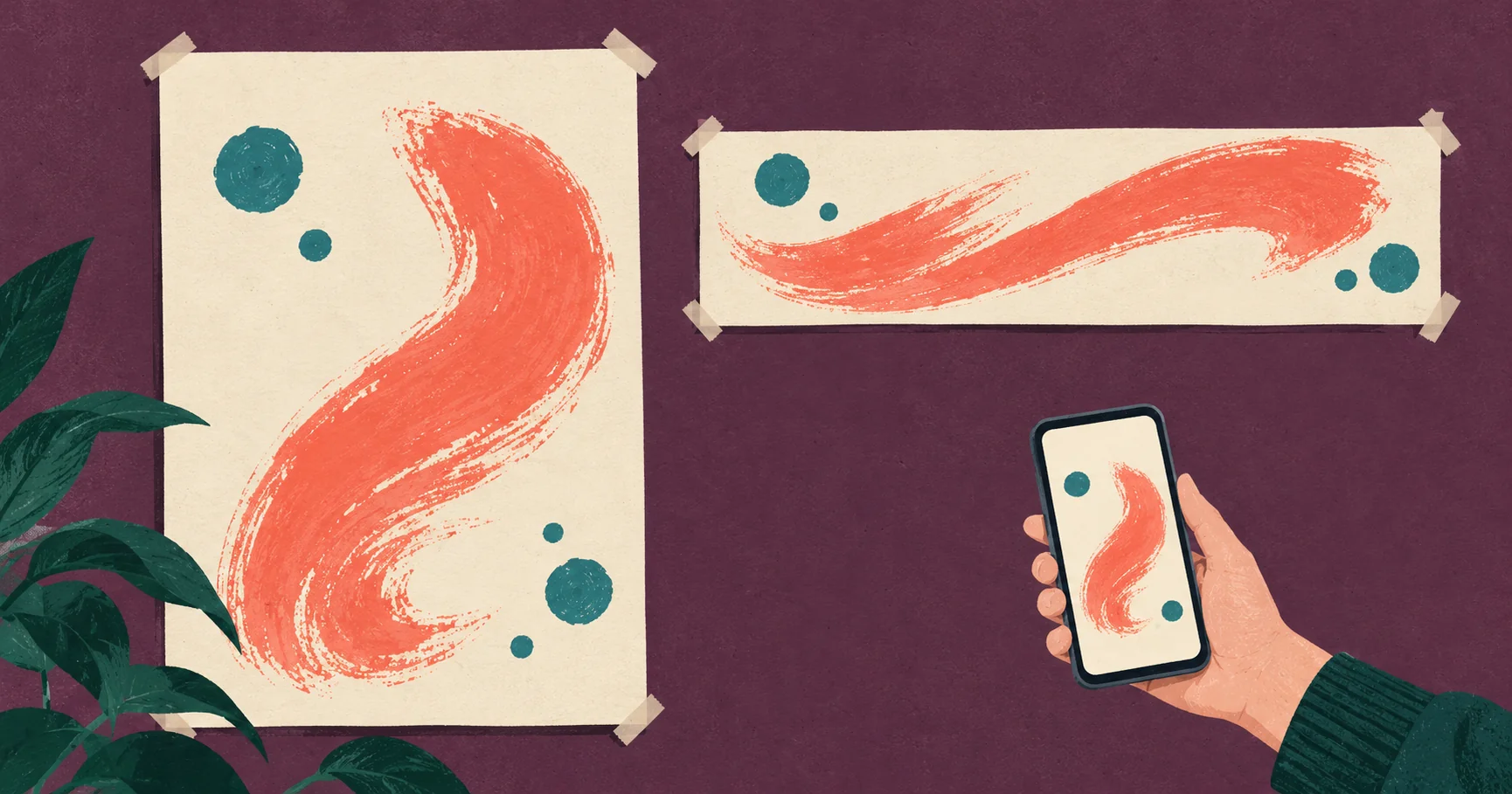
There is no single QR size that fits every banner or poster. A poster read up close and a banner viewed from farther away have different viewing conditions. Consider the size of each small square and the reader’s distance together, as described in DENSO WAVE’s guidance on cell size and reading conditions. Reserve enough room for the code and its instruction, then test it at the intended distance.
5. Test at the final print size
Do not finish the check by scanning a large QR code on your design screen. For a poster, scan a proof printed at its final size. For a large banner, use a proof of the QR area at the intended size or check the printer’s proof. A scaled-down full-banner preview cannot confirm the code’s final size or viewing distance.
Stand where people will read the printed piece, scan with a phone, and confirm that the intended page opens. If possible, check with more than one phone. Test in the actual setting if lighting or reflections may affect the display.
| Check | What to confirm |
|---|---|
| Destination | Does the intended registration, booking, or menu page open? |
| QR file | Is it the downloaded file, uncropped and kept square? |
| Placement | Is the clear margin intact and free of text or images? |
| Real use | Does it open from the final print size and viewing distance? |
Manage the destination after printing
If a registration page changes, update the destination URL behind the short link instead of replacing the printed QR. Scan the printed code again after the update and verify that it opens the new page. If you set an expiration date when creating the link, check that it covers the event period.
See how to change a QR code destination after printing. Short links and QR codes are available on Free. Check the plan details, then complete the final check on a print proof.
QR Codes for Print
Part 2 of 3- 01 Why Does My QR Code Look So Dense? Try a Shorter URL
- 02 How to Add a QR Code to a Banner or Poster
- 03 Change a QR code link after printing